
If your FileMaker databases are encryption-protected, your server needs the encryption password to open them automatically after a restart. Without it, your databases will remain closed and inaccessible to your users until you manually reopen them from the admin console.
This guide explains how to save that password on the server so restarts, including those triggered by automatic SSL certificate renewals, are fully transparent to your users.
Step 1 — Log in to your FileMaker Server Admin Console
Open your browser and navigate to your admin console. Sign in with your administrator credentials.
Step 2 — Identify your encrypted databases
Click on the Databases tab. You will see the list of all databases hosted on your server.
Encrypted databases are easy to spot: they display no padlock icon next to their name. Non-encrypted databases show a padlock icon with a “no entry” symbol (🔒⊘).
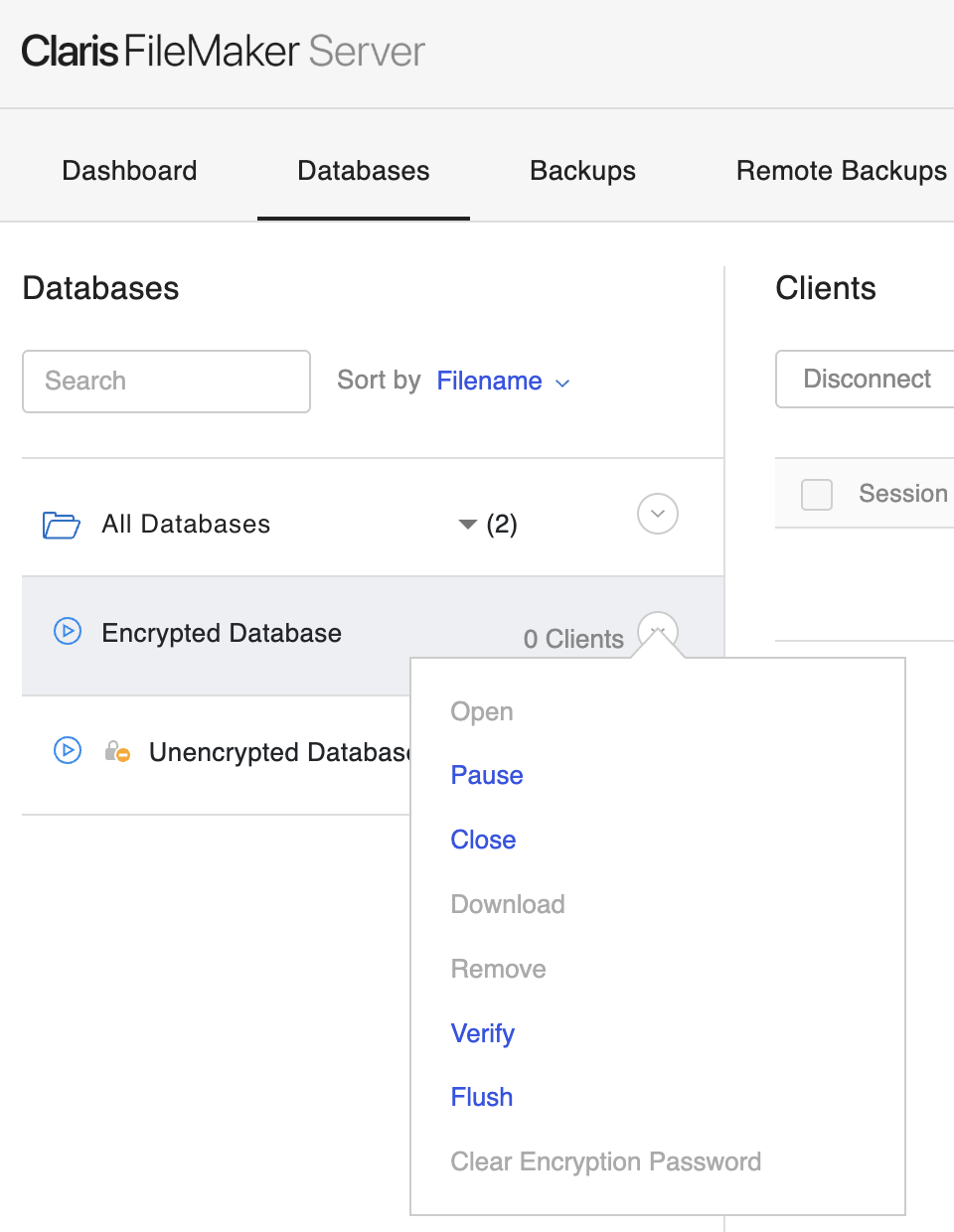
To quickly check whether the encryption password has already been saved for a given database, click the chevron (▾) next to it. If the “Clear Encrypted Password” option is active (clickable), the password is already saved and no further action is needed. If it is greyed out, you need to follow the steps below.
Step 3 — Close the database
Click the chevron (▾) next to the database and select Close. The database will stop being accessible to clients.
Step 4 — Reopen the database
Click the chevron again and select Open. Since the password has not been saved, a popup will appear asking for the encryption password:
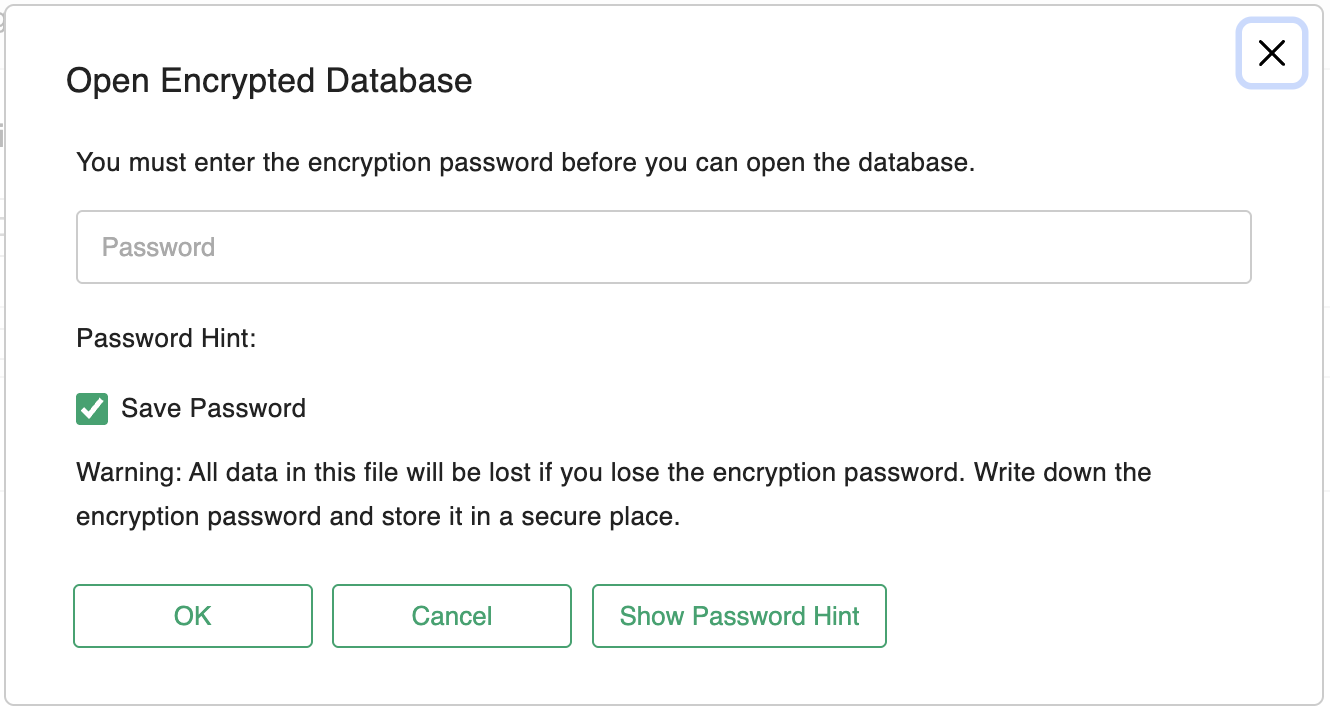
Step 5 — Enter the password and save it
In the popup:
- Enter your encryption password in the Password field.
- Check the Save Password box.
- Click OK.
The database will open, and the password is now stored on the server. From this point on, your server will be able to reopen this database automatically after any restart.
Step 6 — Repeat for each encrypted database
Repeat Steps 3 to 5 for every encrypted database whose password has not yet been saved.
Encrypting your databases is a good security practice regardless of where they are hosted. It ensures that your backups are protected, and that if a database file were ever copied without authorisation, for example from a local machine, an external drive, or a file transfer, its contents would remain completely unreadable without the encryption password.
⚠️ Important: If you ever lose your encryption password, all data in that database will be permanently inaccessible. Make sure you keep your encryption password stored securely somewhere outside the server.